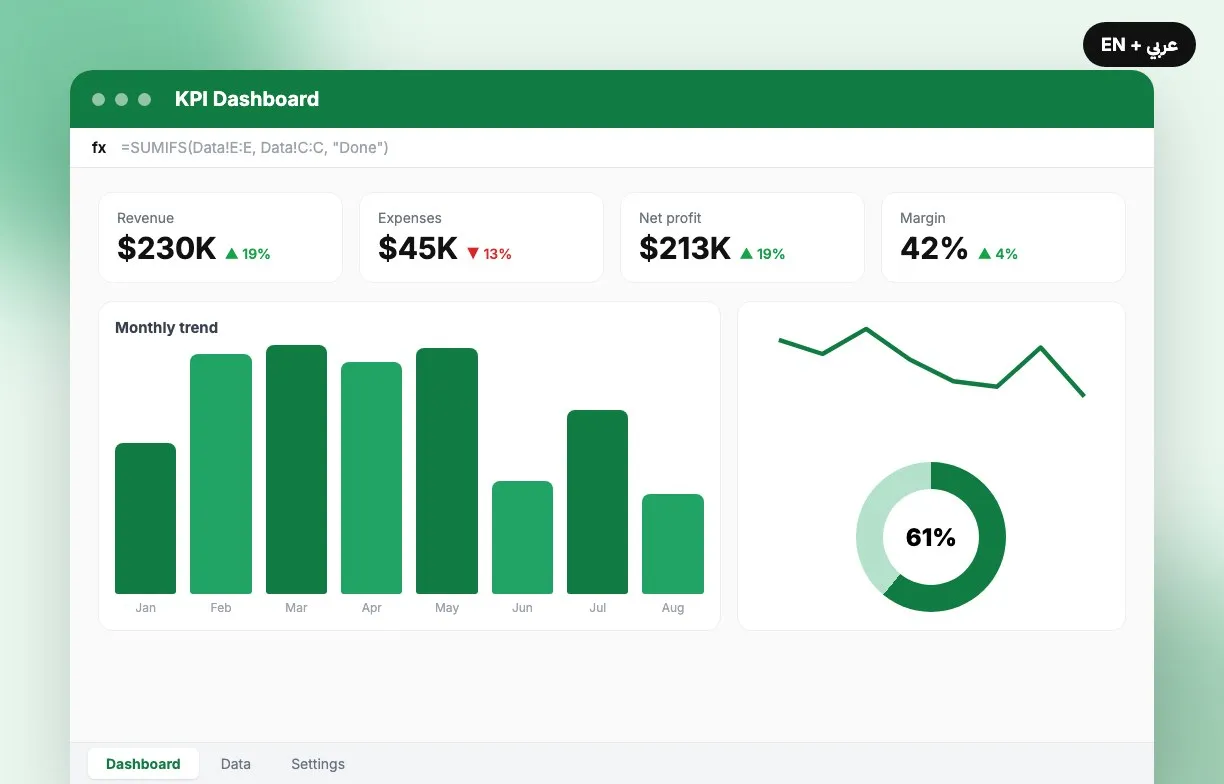
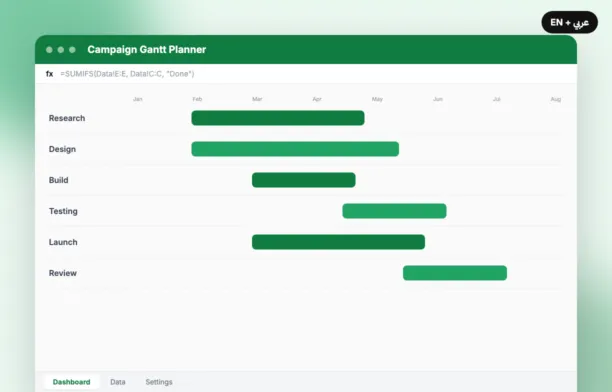
An Arabic dashboard is more than translated labels. The whole sheet, the charts and the printed page should read from right to left, or the report feels backwards to the people who use it every day.
1. Flip the sheet, not just the text
In Excel for Windows, open the sheet and choose Page Layout → Sheet Right-to-Left. Column A moves to the right edge, and formulas keep working because cell references do not change.
2. Reverse the chart axis
Charts do not follow the sheet direction. Select the horizontal axis, open Format Axis and tick Categories in reverse order, so January sits on the right and time runs leftwards like the text.
3. Pick one style of digits
- Use the same digits everywhere: Western (0–9) or Eastern Arabic (٠–٩).
- Keep currency codes such as SAR or AED in a separate column header, not inside each cell.
- Set number formats once in the template so totals line up.
Test the file on the laptops your team really uses. Fonts with Arabic glyphs, such as Arial, Tahoma or Segoe UI, are safe on most company machines.
4. Check the printout
A right-to-left sheet prints right-to-left. Set the print area, choose Fit All Columns on One Page, and preview both the English and the Arabic sheet before you share the file.



 12 Nov 2026 · 2 min read